Reference Hairstyle Try-On: Try a Wig Before Buying
Found a wig you like in a shopping app but unsure how it would look on you? Upload its product photo or a cropped screenshot, then add your selfie to preview the wig style before buying. You can also try a haircut or hairstyle inspiration photo.
First 3 try-ons free · No app required · Original selfie deleted within 24h
How it works
How reference hairstyle try-on works before buying a wig
WigTryAI Reference Hairstyle Try-On uses a wig product photo or cropped shopping app screenshot and your selfie to preview a similar wig style on your face before buying. The reference guides length, texture, part and color together. Upload image files, not product-page links. The preview cannot verify the physical wig’s fit, materials, quality or exact appearance.
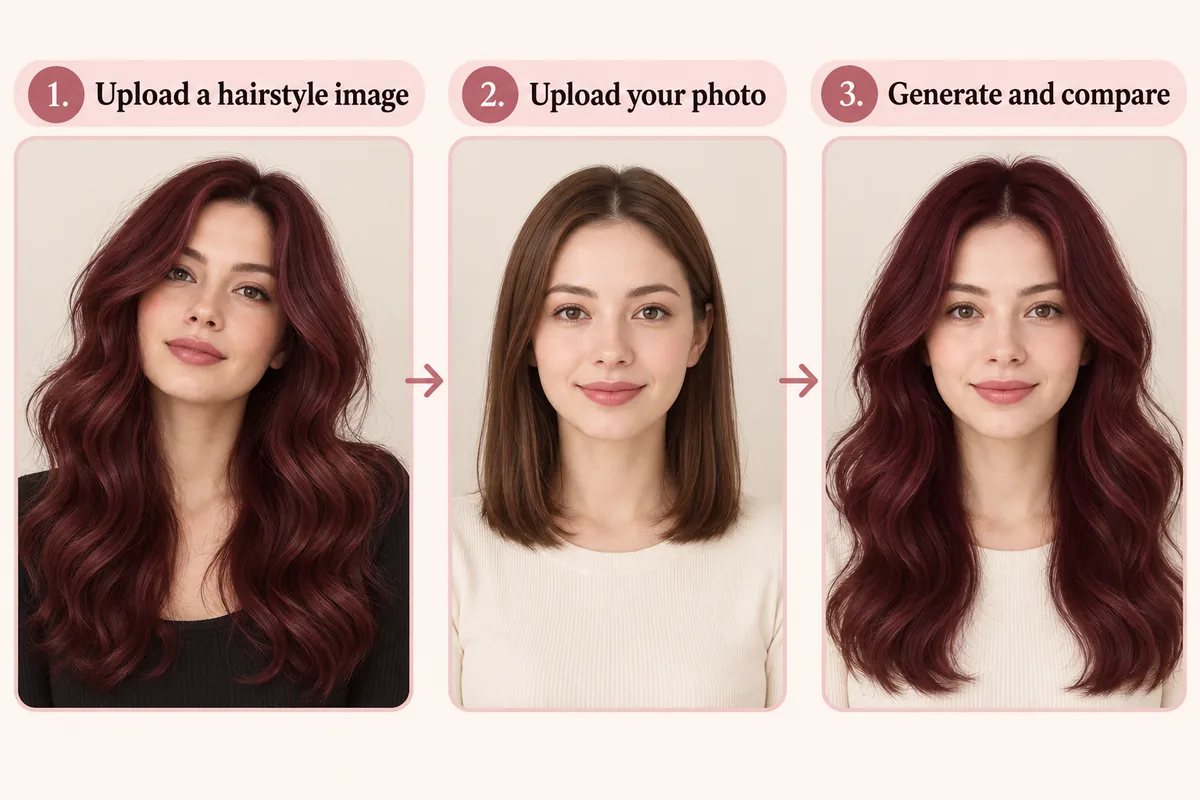
- 01
Upload a hairstyle image
Save a clear wig product photo or screenshot from the shopping app you are browsing. Upload one image with the crown, part, sides and ends visible, not the product-page link.
- 02
Upload your photo
Add a centered, front-facing portrait in even light. Keep the same selfie when testing another reference.
- 03
Generate and compare
Preview the wig style on your face before buying. Compare length, face framing and color with the reference, and check that your face is still recognizable. Each requested image uses one credit.
AI illustration of the two inputs and workflow, not a product screenshot.
Found a wig in a shopping app?
Try on a wig from a product photo before you buy
Like a wig on Amazon, Etsy, Temu or AliExpress but unsure whether its style suits you? Save a clear product image or crop a screenshot, upload it as your reference, and add your selfie. This example shows the two inputs and an actual generated preview; no shopping app connection or product link is needed.
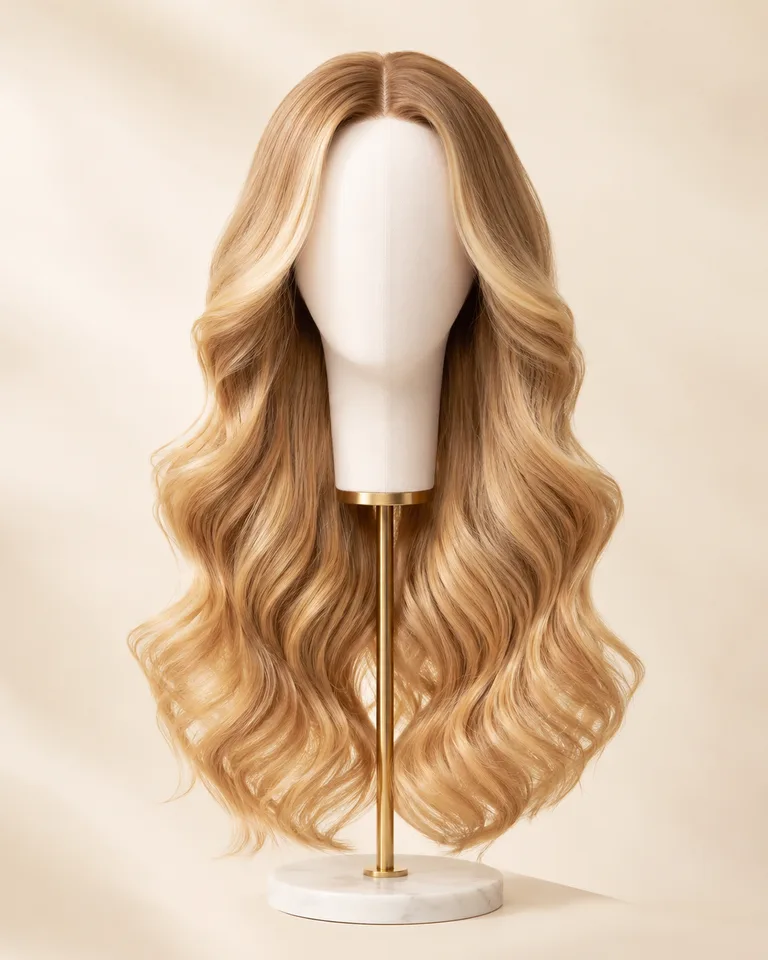
Reference: the wig photo
This demo wig photo supplies the long waves, center part and blonde color direction. It is project demonstration material, not a shopping app listing.

Selfie: your starting point
The portrait supplies the person, black shirt and bedroom scene. Use your own clear selfie to explore the wig style on your face.

Preview: the wig style on a face
This actual WigTryAI output follows the broad wave direction, with differences in part and shade. It is an AI style preview, not a photo of the physical wig being worn.
Would this wig style suit me? Check these three details
First check that the generated face, expression and scene still resemble your selfie. Then compare the wig reference and preview by length, face framing and color direction. In this example, the center part shifts slightly and the shade looks less golden: a useful reminder that the preview is a similar style direction, not an exact rendering of the item.
Length and outline
Notice where the hair falls relative to your jaw and shoulders. Check that it follows the reference’s outline; do not read the preview as an exact inch measurement.
Part, fringe and face framing
Compare how the part and front pieces frame your forehead and cheeks. Inspect the hairline, ears and edges for unintended changes before judging the look.
Color direction
See whether the shade’s warmth, lightness and contrast appeal to you. Lighting, screens and AI can shift the color, so check the seller’s shade details separately.
For image selection and seller checks, read the wig product photo try-on guide. The reference guides the visible style; fit, materials and exact appearance still need separate checks.
Upload my wig photo →Try this wig style on my photo →
Choose the reference
How to choose a wig product photo or hairstyle reference
Choose a single photo from the wig listing that shows the style, length and color option you are considering. A clear model or display-head image with the part, outline and ends visible gives the preview a clearer direction than a tight crop or collage. The same guidance applies to haircut inspiration.
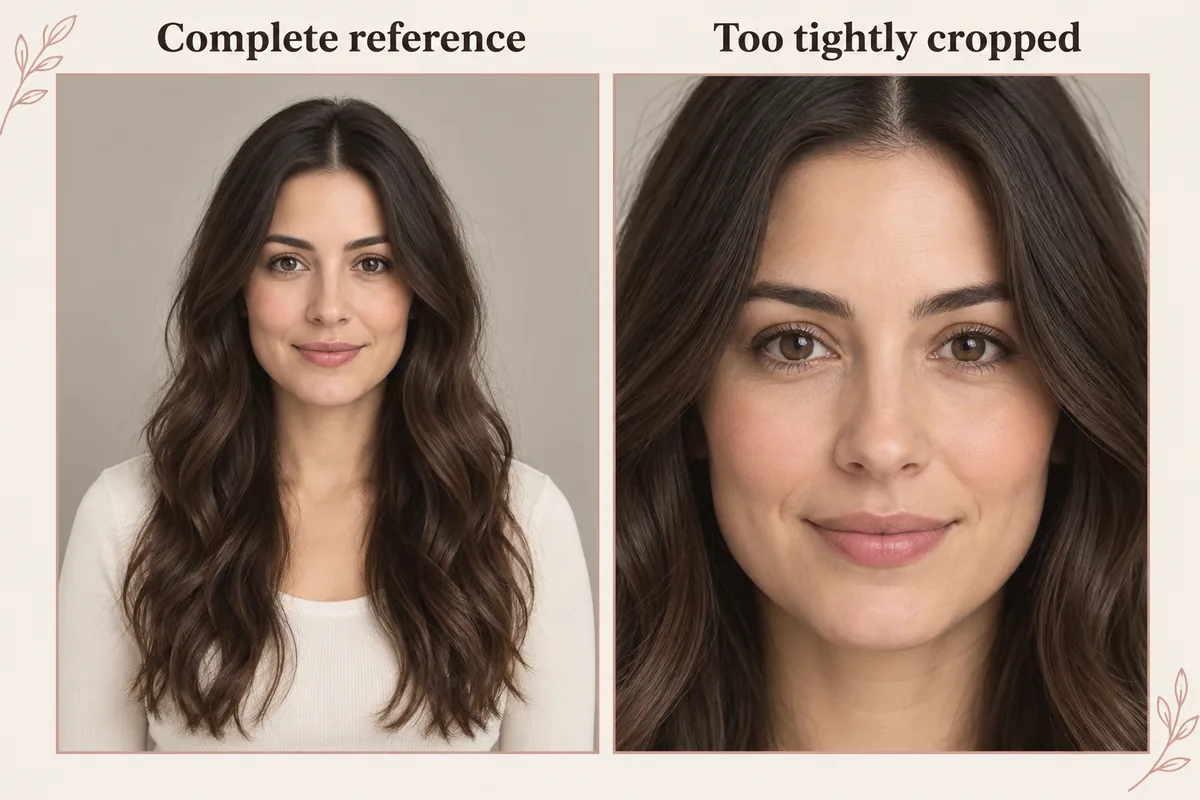
Include the whole outline
Show the crown, sides and ends. Leave enough space around the hair to see its length and width.
Use one readable view
A front or slight three-quarter view can show both the part and face framing. Avoid collages with competing hairstyles.
Keep light and detail clear
Choose an image where texture and shade are visible. Heavy shadows and beauty filters can hide the details you want to transfer.
Crop the surrounding page
Crop away app navigation, prices, captions and unrelated images without cutting off the wig’s crown or ends. Upload a JPG, PNG or WebP image you are permitted to use.
AI illustration of framing: the tight crop hides the crown and hair ends, so the intended length is harder to read.
What the reference carries
What does the hairstyle reference control?
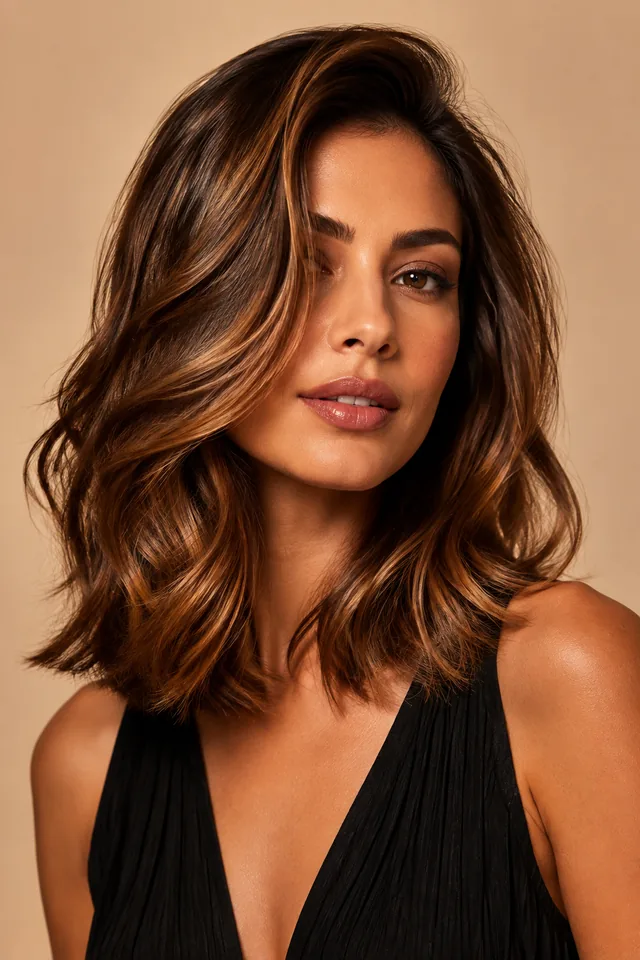
The reference guides the cut and shade together. In the caramel lob inspiration image, look at the side-swept front, wave pattern, endpoint and color as separate visible features; this is not a preview on your photo.
Outline
The reference guides the overall hair shape, including where the style is widest and how it narrows toward the ends.
Length
The visible endpoint matters. A crop that hides the ends cannot clearly communicate a chin-length or chest-length direction.
Texture
Wave size, curl shape and visible layers guide the look. They do not establish how your own hair behaves without styling.
Part and fringe
The reference guides parting and forehead coverage. Check that these details are visible before uploading.
Color
The reference supplies a shade direction as well as the cut. This mode does not provide a separate color choice.
Volume placement
Look for fullness at the crown, cheeks or lower lengths. The preview cannot measure your real hair density.
Prepare the second input
Prepare your portrait separately from the reference
Your selfie has a different job: it supplies your face and scene. Use one clear portrait for every reference so a change in pose or lighting does not decide which hairstyle you prefer.

Face the camera
Keep your face centered with a simple angle and your eyes visible.
Use even light
Soft, neutral light makes the hairline and color contrast easier to read.
Keep the boundaries visible
Avoid hats, sunglasses or hands covering the forehead, ears or neck.
Reuse the same photo
Keep the portrait steady when changing the reference; check for unrelated face or background changes in every result.
Use a photo you are comfortable uploading and review photo privacy and retention. Selfies and generated previews have separate retention periods.
Preview limits
What can a wig preview tell you before buying?
A wig product photo shows a styled appearance under one lighting setup. The preview adapts that visible direction to your portrait so you can compare whether you like the look on your face. It cannot reproduce every strand or establish how the physical wig will fit, feel or look after installation.
Useful for comparing
- ✓Whether the outline, endpoint, part and fringe follow the intended direction.
- ✓How the hairstyle frames your face on the chosen portrait.
- ✓Which wig style direction you prefer before buying; use seller information for physical product checks.
Does not predict
- —The actual wig’s cap size, fit, comfort, lace construction or fiber quality.
- —An exact match to the product’s shade, density, length or styled finish.
- —Your real hair density, cowlicks, natural movement or shrinkage.
- —The time, tools and upkeep a real version would require.
- —The exact result of a haircut, dye or other salon service.
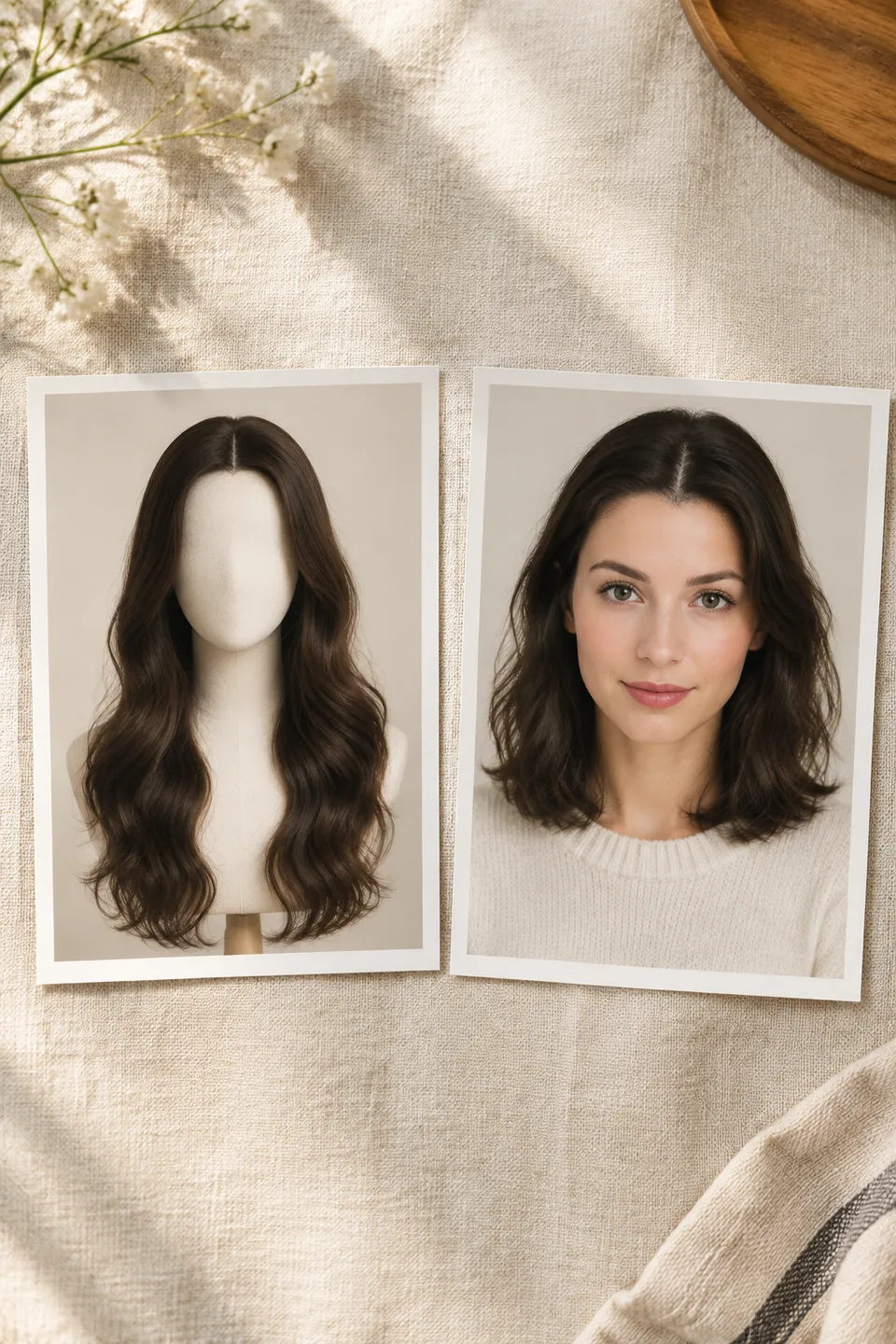
AI illustration of a display-head image and a portrait. It is not a product fit test or a documented try-on result.
Choose the input method
Reference photo, presets, or a color-only preview?
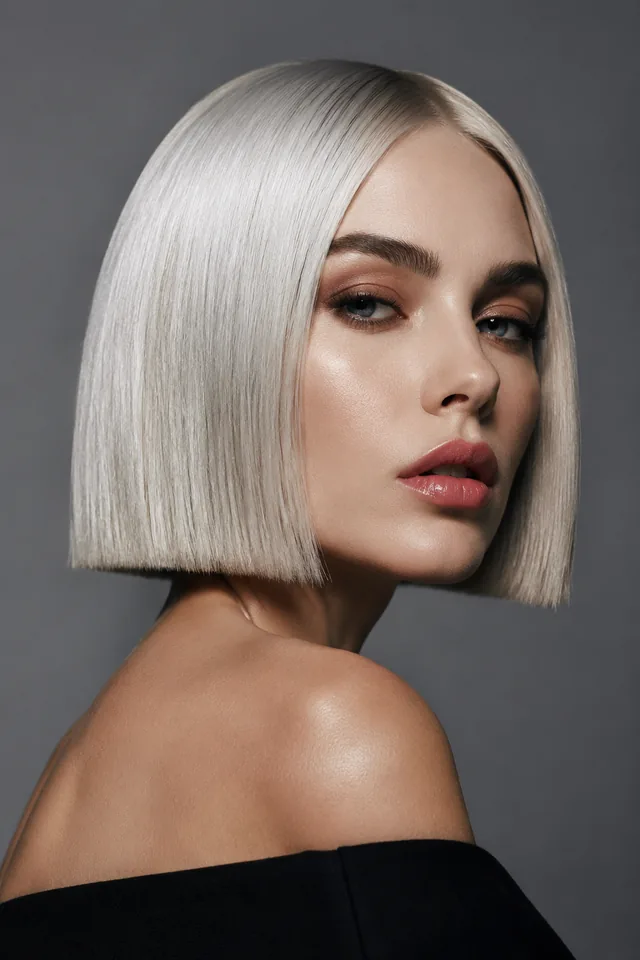
Use a reference when you want its hairstyle and shade together. If only one detail in the platinum bob inspiration appeals to you, choose the tool that lets you test that detail more directly.
I want this specific reference
Upload the wig photo you saved from a shopping app, or another hairstyle reference. Keep the same selfie to compare the outline, front shape and shade together.
Upload my reference →I want to control the cut and color
Choose a library hairstyle, available length and optional shade. This is useful when you like the cut but want another color direction.
Choose preset cuts and colors →I want to test a shade
Use Hair Color Try-On with your current hairstyle. Review the output for unintended changes before comparing color.
Try hair colors →For a longer comparison method, read the virtual try-on guide. The platinum bob image is inspiration, not a prediction of a cut or coloring result.
FAQ
Frequently asked questions
Can I try on a wig from a shopping app before buying?
Yes. If you found a wig you like but are unsure how the style would look on you, save a clear product photo or cropped screenshot you are permitted to use. Upload it as the reference and add your selfie to preview the visible style on your face. The result does not verify the actual wig’s fit, materials or exact appearance.
Can I use a wig photo from Amazon, Etsy, Temu or AliExpress?
Yes, if you have permission to use the image. Choose the photo for the style, length and color option you mean, then upload the image file with your portrait. WigTryAI is an independent reference-image tool; it does not connect to those shopping apps or import their listings.
Can I paste a wig product link instead of uploading a photo?
No. Upload a saved product image or a cropped screenshot, not a shopping app or product-page link. Keep the full wig outline visible and remove app navigation, prices and unrelated photos. JPG, PNG and WebP reference images are supported.
Will the preview show exactly how the wig will look when I wear it?
No. It helps you explore whether you like a similar length, part, texture and color direction on your face. It cannot establish cap fit, comfort, lace realism, fiber quality, actual density or the exact shade. Confirm those details with the seller before buying.
How do I try a hairstyle from a reference photo?
Step 1: upload a hairstyle reference image with the outline and ends visible. Step 2: upload a clear, front-facing portrait. Step 3: generate and compare the preview with both inputs, checking the hair direction and any unintended face changes.
What does the reference control?
It guides the visible cut, length, texture, parting, fringe and color together. Your selfie supplies the person and scene. A reference is a style direction, not a guarantee of an exact strand-by-strand copy.
Can I try a hairstyle outside the preset library?
Yes. Upload a hairstyle image you are permitted to use and one clear selfie. WigTryAI uses the reference as the direction for an AI preview on your portrait; it does not need to be a hairstyle from the preset library.
What makes a good reference image?
Choose one clear image with the crown, part, sides and ends visible. A front or slight three-quarter view makes the framing easier to read. Tight crops, collages, heavy shadows and strong filters can hide useful hairstyle details.
Can I upload a Pinterest screenshot or magazine clipping?
Yes, if you have permission to use the image. Save it as JPG, PNG or WebP, crop away unrelated text or surrounding images, and keep the complete hairstyle visible. Upload the image file rather than a Pinterest page address.
Can I choose a separate color?
This mode follows the reference's color direction alongside its hairstyle. Use Virtual Hairstyle Try-On for preset hairstyle and color choices, or Hair Color Try-On to test shades with your current hairstyle. Review generated output for unintended changes.
Will it copy the reference person's face?
The reference is used for the hairstyle direction; your portrait is the intended source for the person, expression and scene. AI output can still change unrelated details. Compare the generated face with your input before judging the hairstyle.
How many credits does a reference preview use?
Each requested image uses one credit. Your first 3 try-ons are free, and the first generation can be anonymous. Later generations may require an account and available credits; free previews are not unlimited.
Does it predict a salon result?
No. The preview can help you describe a visual preference, but it cannot establish your real density, growth pattern, styling effort or the exact result of a cut or color service. Discuss the direction and its practical limits with a stylist.
What happens to my uploaded selfie?
Original selfies are automatically deleted from WigTryAI storage within 24 hours. Generated previews have a separate retention period and are automatically deleted within one year. Read the Privacy Policy for sharing and deletion details.