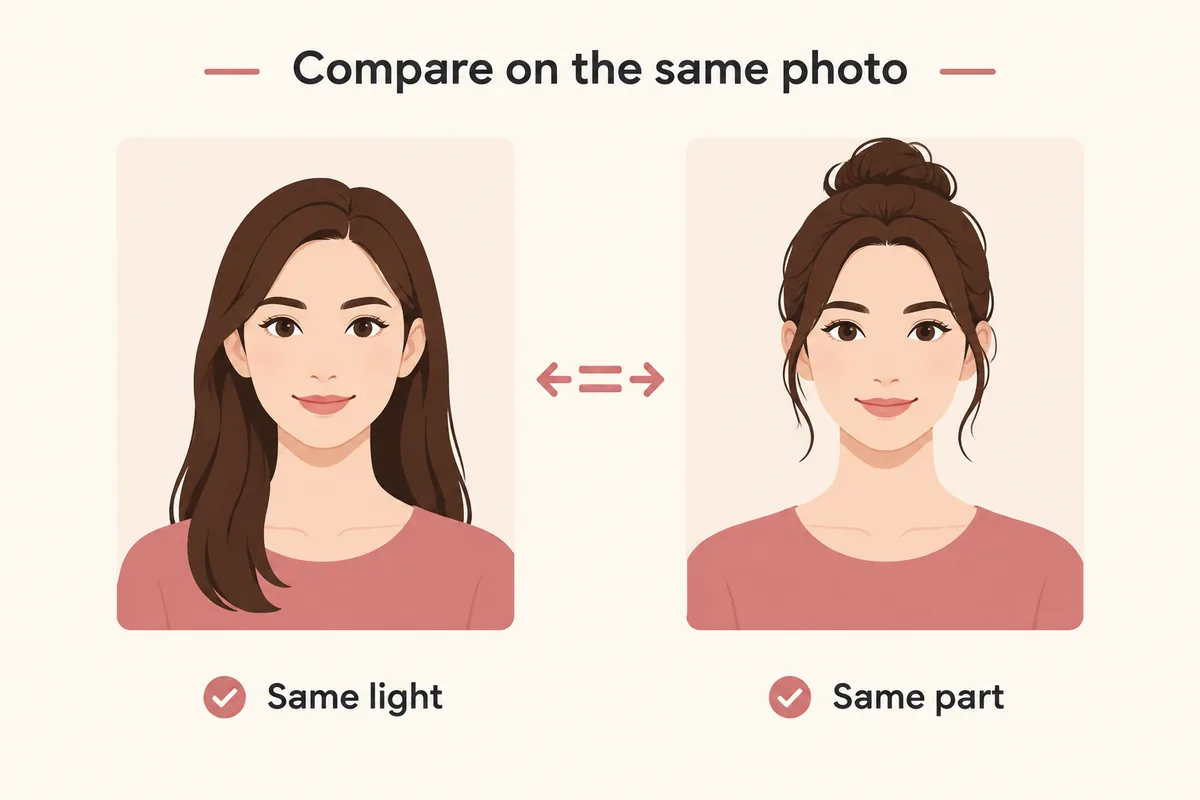
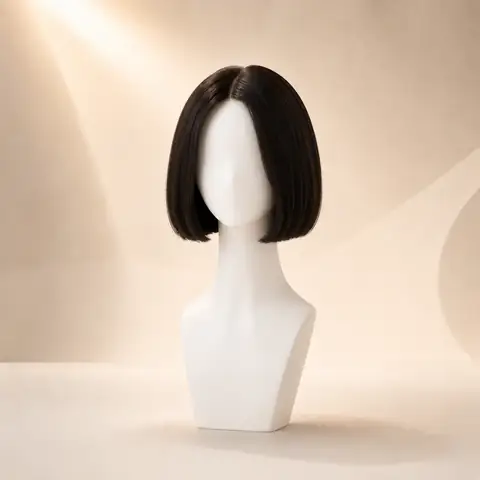
Where the ends land
chin or jaw
Upload one clear portrait and see where a chin-length, blunt, layered or curly bob ends on your own face before you order a unit.
First 3 try-ons free · No app required · Original selfie deleted within 24h
Choose look
Quick answer
This page previews bob directions on your own photo so you can judge the shape before shopping: chin-length rounded, one-length blunt, layered and curly bobs. You upload one front-facing portrait, the tool opens on a blunt bob, and each direction can be swapped while the photo stays the same. The preview applies a hairstyle to your photo — it does not simulate a wig cap, lace, density, fiber or how a specific unit sits, and it cannot tell you whether a product will fit.
How it works
Keep the direction, selfie, and comparison method consistent so each preview answers one clear question.
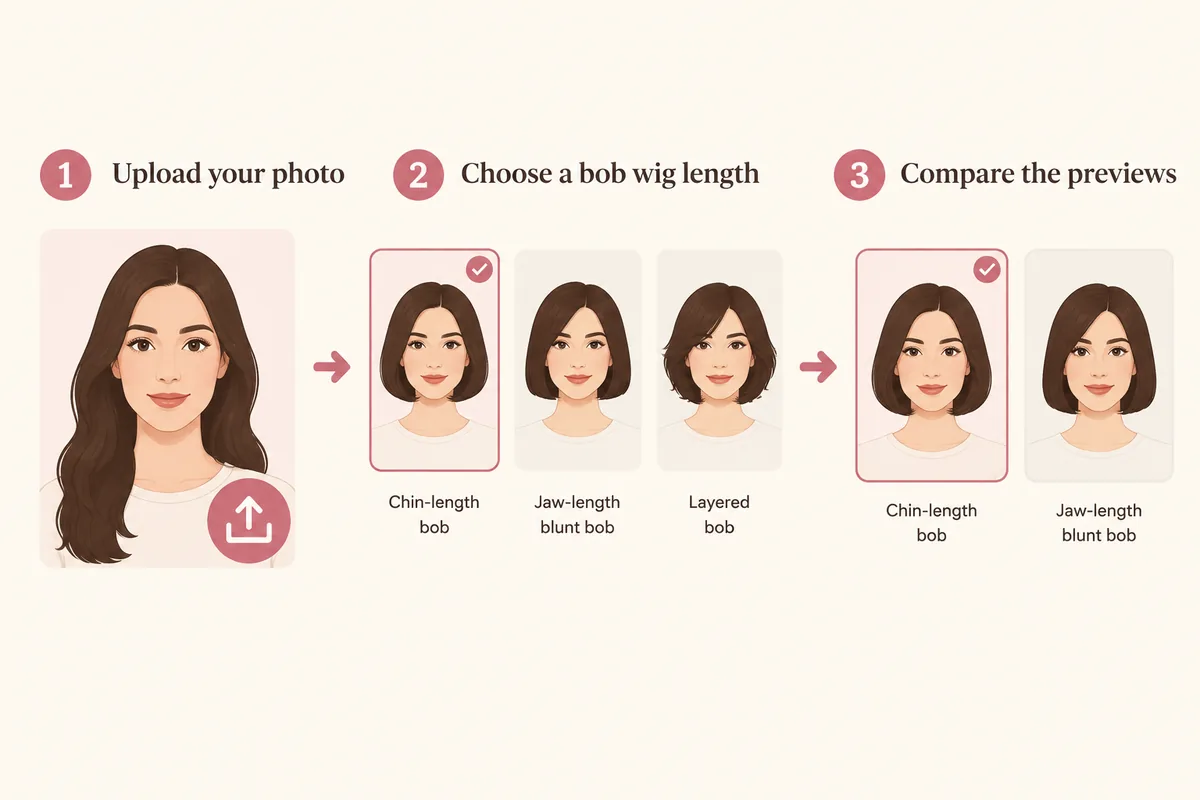
Use a front-facing portrait with the hairline, jaw and neck visible — the bob's whole effect happens in that area.
Start from the blunt bob the tool opens on, then switch to chin length, layered or curly without changing the photo.
Read where the ends land and how much width each version adds beside the jaw.
Comparison factors
Compare the visible direction first, then judge detail. These factors make a virtual try-on easier to interpret.
chin or jaw
Comparison guide
Keep one clear selfie, the same lighting, and a stable hairstyle or color direction. Change one variable at a time so each virtual try-on result is easier to compare and trust.
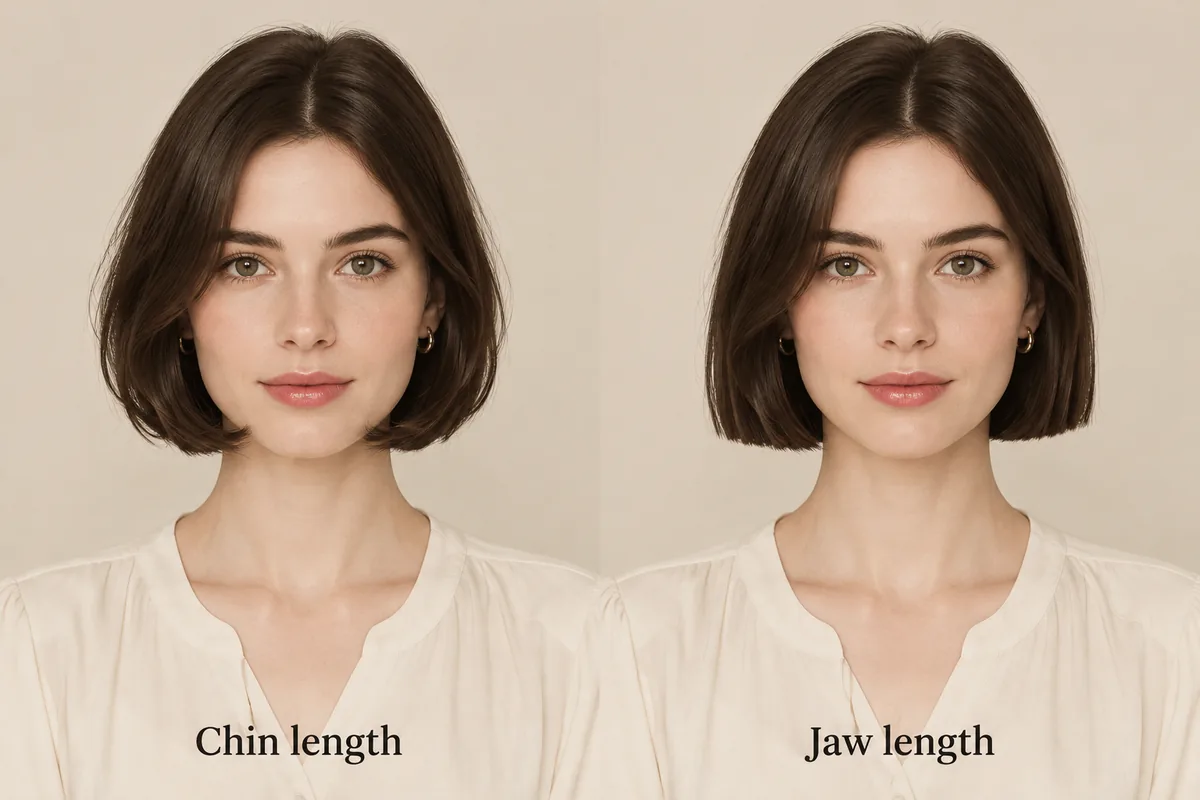
A bob is decided by where it stops. A chin-length bob leaves the neck open and puts the frame at the narrowest point of the jaw; a jaw-length blunt bob covers a little more and reads more graphic. Layering breaks the perimeter so the shape moves instead of holding one line, and curl adds width where it sits.
Preview two lengths on the same photo before you shortlist anything. Where the ends land on you is a question a product photo cannot answer, and it is the single detail most people get wrong when ordering.
The tool renders a hairstyle onto your photo, which settles the visual questions: shape, length, how much jaw and neck shows, and how the color reads on you. It does not simulate a wig itself — cap construction, lace, density, fiber behavior, weight and how a unit sits on your head are outside the preview.
Keep the two decisions separate. Choose the look here, then check the product page and reviews for construction, measurements and fit. That way the style questions are answered before you spend time comparing units.
If you already own a bob wig and want help styling it, the styling guide covers washing, heat limits, parting and how to keep the ends from looking flat. The preview here answers the earlier question: whether this shape suits your face in the first place.
Style categories
Not sure where to start? Explore a few popular hairstyle directions below, then try your favorites on your own photo.
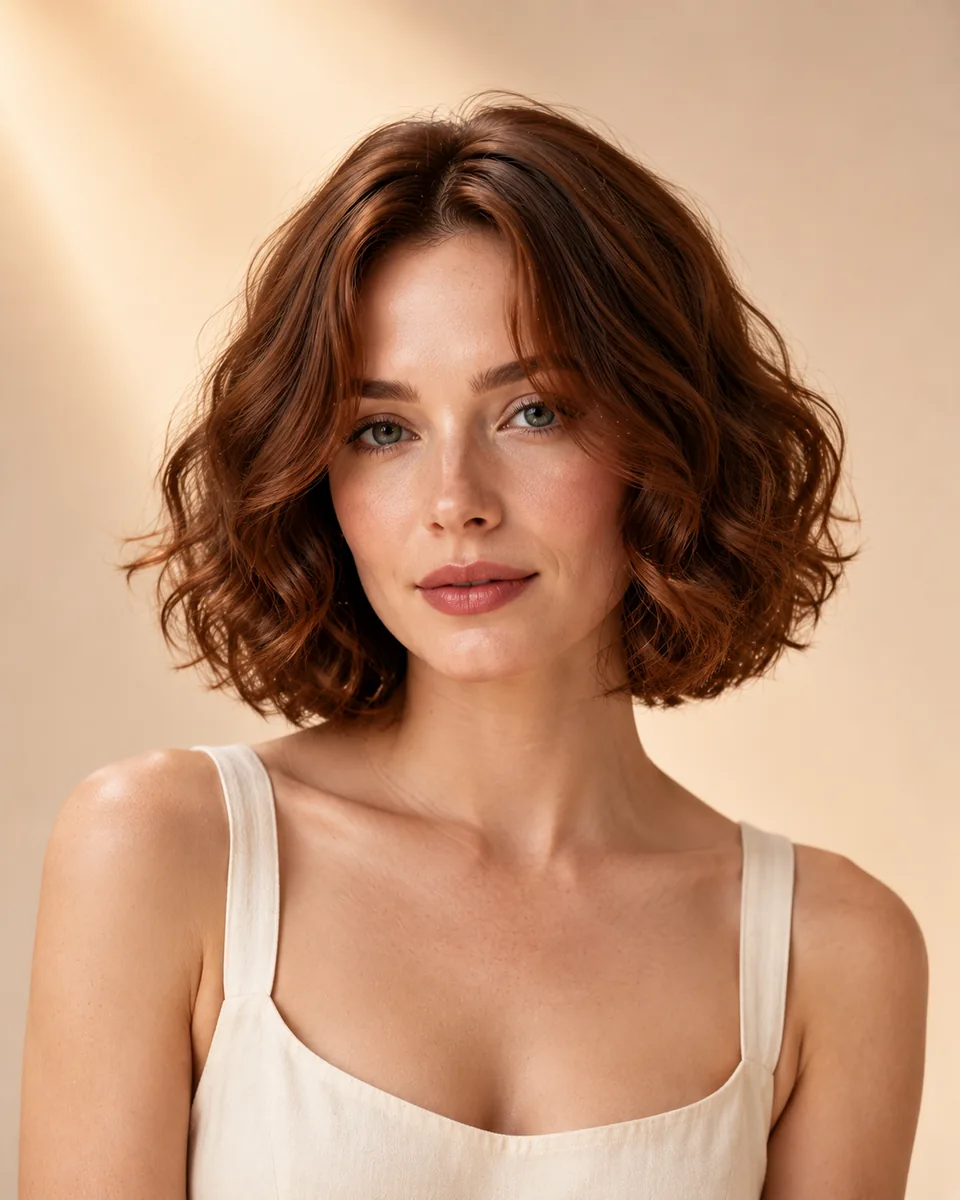
A soft rounded line that stops at the chin and keeps the neck open.
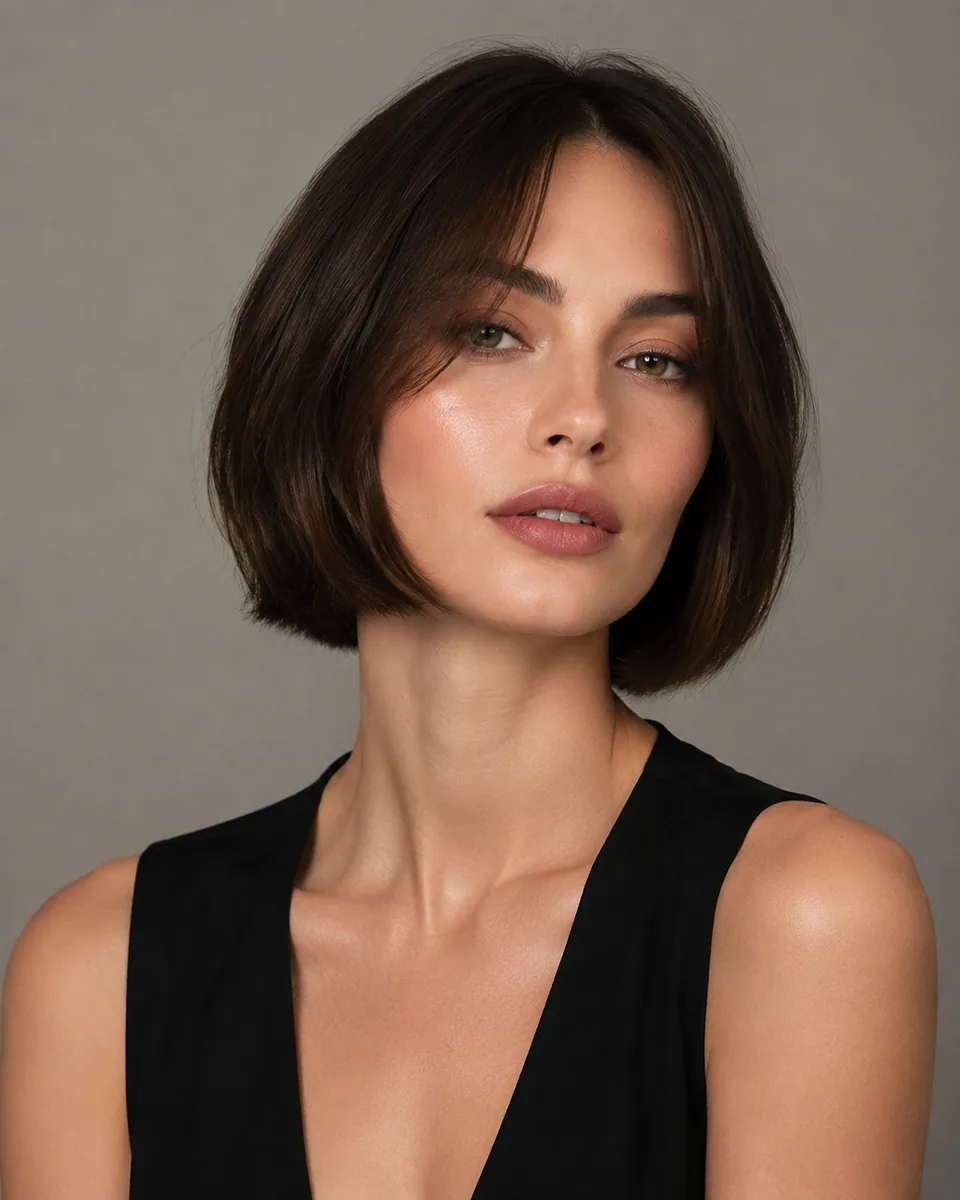
One even length with a single line at the jaw — the strongest graphic shape here.
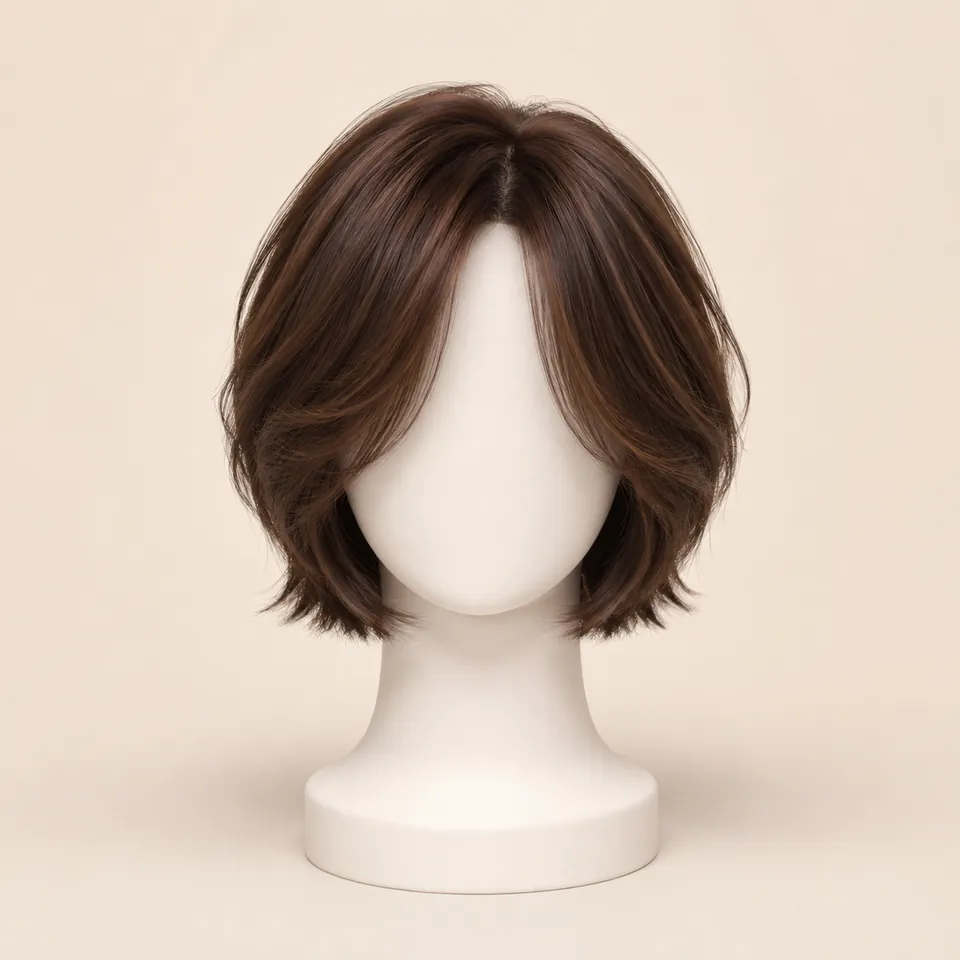
Visible interior layers that break the perimeter and soften the outline.
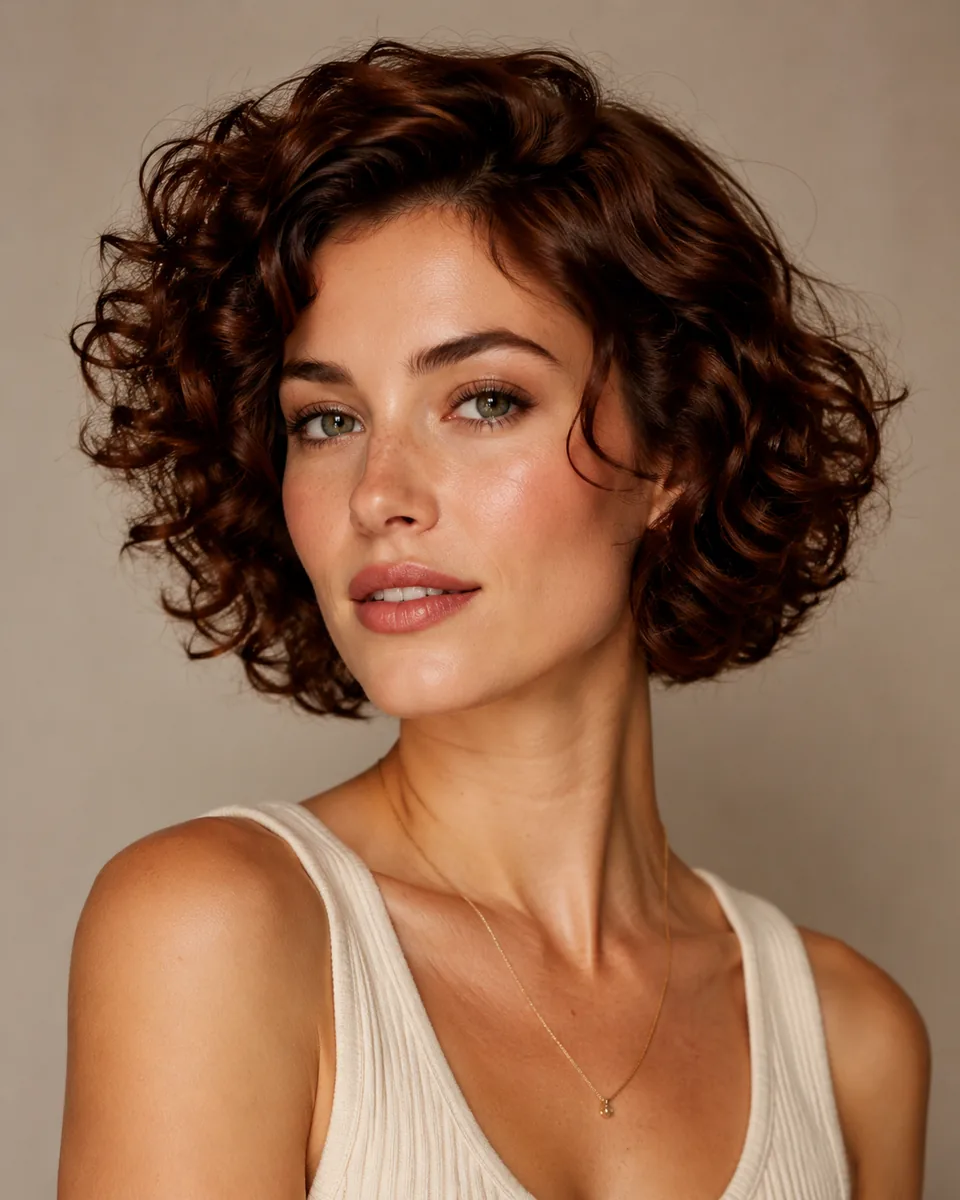
A rounder outline where the curl carries the width beside the jaw.
Color options
Compare color after choosing a silhouette so contrast, warmth, and dimension stay easy to judge on the same photo.
Preview soft black or natural black hair directions.
Try this colorCompare dark brown, chocolate, chestnut, and warm brown ideas.
Try this colorTry honey blonde, golden blonde, beige blonde, or platinum tones.
Try this colorExplore a richer red-purple shade without changing your real hair.
Try this colorPreview darker roots fading into lighter ends.
Try this colorWhy use this tool
Start with a clear portrait, compare one variable at a time, and use the result as a visual reference for your next style decision.
Preview the shape before buying
Compare four bob directions
No app required
Style inspiration only
Privacy note
WigTryAI is built for personal visualization and style inspiration. It does not sell physical wigs, beauty products, or salon services, and it does not provide commerce matching. Your generated look is meant for exploration, comparison, and optional friend feedback.
Preview limits
The card portraits and comparison figures on this page are editorial reference illustrations produced for WigTryAI; they are examples of the direction, not outputs from a real try-on, and they are not photos of customer results. It previews a hairstyle direction on your photo; it is not a wig simulator and not a promise about a specific unit.

Photo setup
A clean, consistent portrait keeps the hairstyle or color direction as the main variable you are judging.
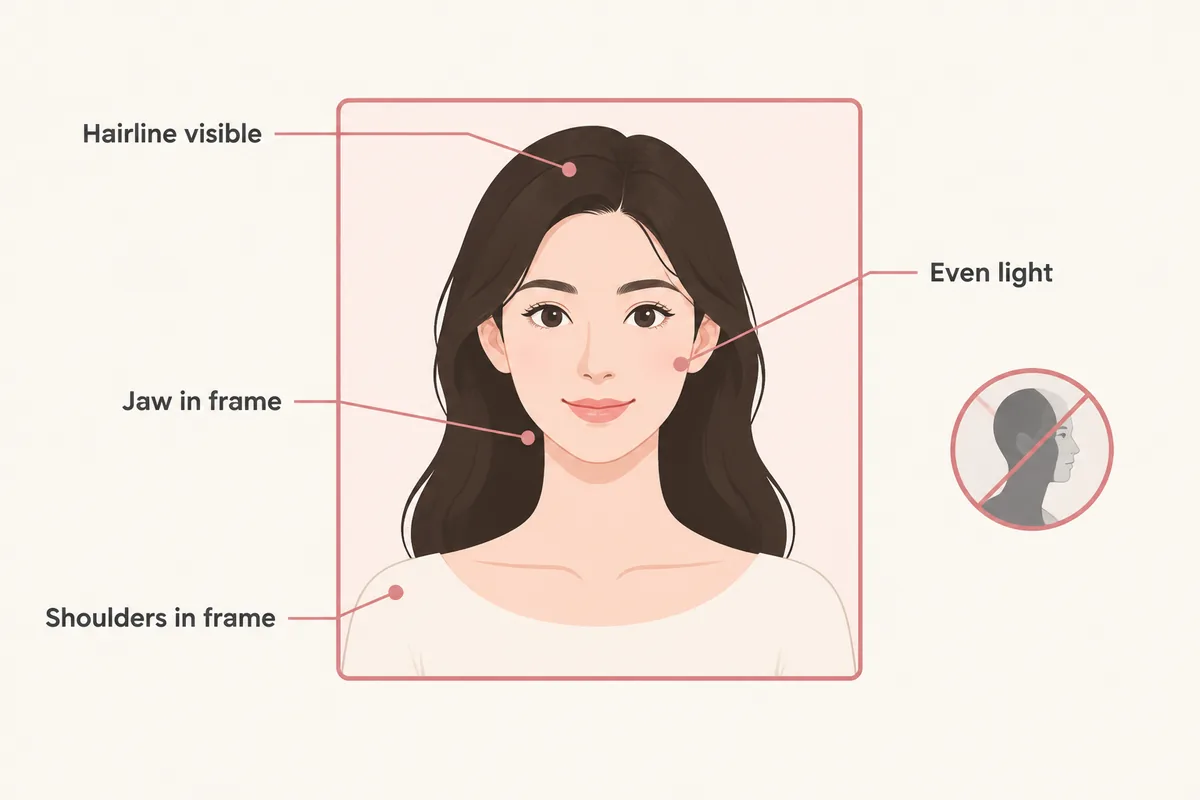
keep your face centered and your eyes visible so both sides can be compared consistently.
avoid strong colored light and side shadows, especially when comparing blonde, gray, silver, or dimensional color.
move hats, sunglasses, hands, and heavy filters away from the forehead, ears, and hairline.
avoid a strong tilt or mirror distortion so length, volume, and symmetry remain easier to judge.
Related tools and guides
Move to a related tool or guide when your next question is about color, wigs, face shape, or comparison.
FAQ
Yes. Upload one front-facing portrait and the tool renders chin-length, blunt, layered and curly bob directions on your face so you can compare where the ends land. The first three try-ons are free, additional previews may require credits, and the original selfie is deleted within 24 hours.
Chin length keeps the neck open and frames the front of the jaw; jaw length covers slightly more and reads more graphic. Preview both on your own photo and look at where the ends stop rather than at the style name.
No. The preview applies a hairstyle to your photo and shows the visible shape, length and color. Cap construction, lace, density, weight and fit are product details that the preview cannot simulate.
That is exactly what the comparison is for: a blunt bob holds one straight line at the jaw, while a layered or curly version breaks the perimeter and reads softer. Preview both on the same photo before deciding how graphic you want the shape.
The preview applies the catalog color that goes with each style. If you want to judge a different shade, the tool lets you switch color while keeping the same bob, so you can compare the shape and the shade separately.